



Creating CCTV with Wyse3040 + FreeBSD + Webcam
This article is a translation of the following my article:
Original: Wyse3040+FreeBSD+Logicool Webcamで監視カメラを自作する
* Translated automatically by Google.
* Please note that some links or referenced content in this article may be in Japanese.
* Comments in the code are basically in Japanese.
by bokumin
Creating CCTV with Wyse3040 + FreeBSD + Webcam
Introduction
I was playing with Wyse3040 at home, so I thought it was time to do something with it, and then I found a spare web camera, so I created an improvised surveillance camera.
Execution environment
Device name: Wyse3040
OS: FreeBSD 14.3
Logicool Webcam C270
*The far right of the image is an external HDD, from which FreeBSD is started

Installing packages
In order to recognize Logitech Webcam on FreeBSD, we will install webcamd.
webcamd needs to load the cuse kernel module, so let’s do that first.
# 手動の場合
kldload cuse

# 自動でロードする場合
tail /boot/loader.conf
cuse_load="YES"
Next, we will install webcamd.
pkg install webcamd
If you want to enable webcamd automatically in the future, add webcamd_enable=”YES” to rc.conf.
cat /etc/rc.conf
.
.
.
webcamd_enable="YES"
If you want to manually enable webcamd every time, you can do it with the following command.
# 起動
service webcamd onestart

# 停止
service webcamd onestop

# 状態確認
service webcamd status
When webcamd is running, the USB device camera can be recognized and operated as /dev/video0. I have included a command to check if the USB device has been successfully recognized, so please refer to it if something goes wrong.
usbconfig
ugen0.2: <Webcam C270 Logitech, Inc.> at usbus0, cfg=0 md=HOST spd=HIGH (480Mbps) pwr=ON (500mA)

# もしくはdmesgでシステムログを確認する
dmesg
Take a photo
Since it recognizes it as /dev/video0, specify that and execute the command. This time I took photos using fswebcam and ffmpeg.
pkg install fswebcam

fswebcam -d /dev/video0 -r 640x480 photo.jpg

# バナーなし
fswebcam -d /dev/video0 -r 640x480 --no-banner photo.jpg

# ffmpeg
ffmpeg -f v4l2 -i /dev/video0 -frames:v 1 photo.
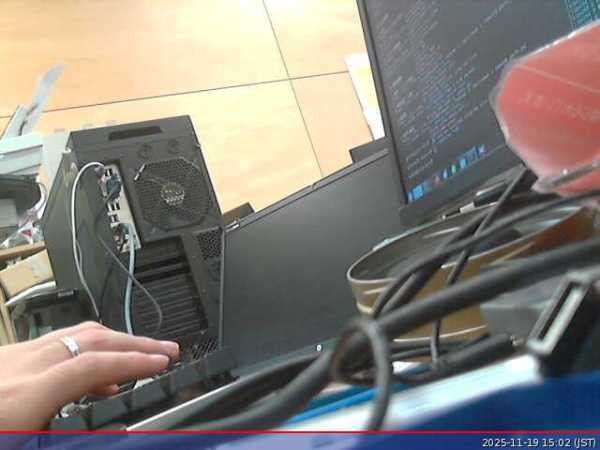
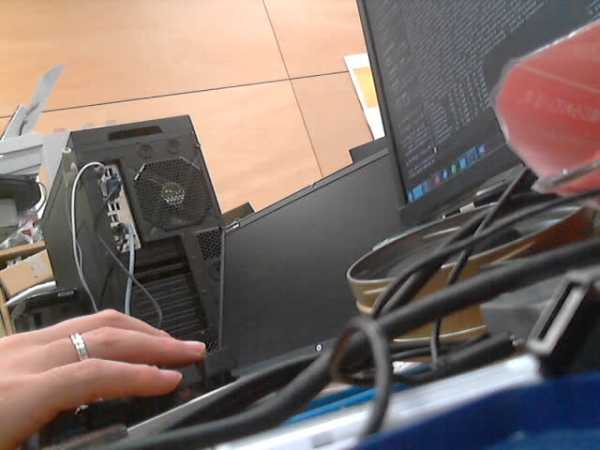
The following photos were actually taken with Logitech’s C270.
Photographed with fswebcam
Photographed with ffmpeg
Video shooting
We will shoot a video in the same way. This time I used ffmpeg and vlc.
# 基本(Ctrl+Cで停止)
ffmpeg -f v4l2 -video_size 640x480 -i /dev/video0 video.mp4

# 時間指定(10秒)
ffmpeg -f v4l2 -video_size 640x480 -i /dev/video0 -t 10 video.mp4

# 音声も録音
ffmpeg -f v4l2 -i /dev/video0 -f oss -i /dev/dsp0 \
  -c:v libx264 -c:a aac video.mp4
Here is the actual photo taken.
This can also be done using vlc.
pkg install vlc

# GUI起動
vlc v4l2:///dev/video0

# コマンドライン録画
cvlc v4l2:///dev/video0 --sout file/mp4:video.mp4
HTTP streaming
Next, we will perform HTTP streaming. This time I used motion.
$ pkg install motion

$ vim motion.conf

daemon off
videodevice /dev/video0
v4l2_palette 0
emulate_motion off

# movie_filename webcam # ファイル名を指定したい場合
# movie_max_time 3600 # デフォルト120、0だと無制限
movie_codec mp4
width 640
height 480
framerate 15
stream_port 8081
stream_localhost off
stream_maxrate 15
output_pictures off


$ motion -c motion.conf
motion after the harvest, http://IPアドレス:8081にアクセスをしてもらうと、以下のようにストリーミングされている様子がわかると思います。
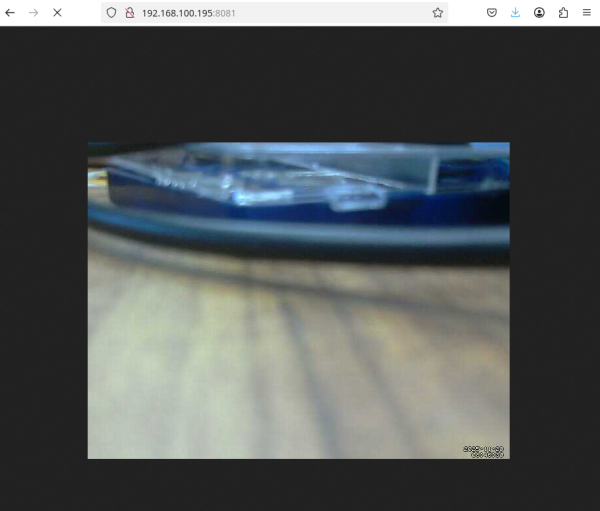
Here is what was actually streamed.
motion by default, it will stop recording after a certain period of time has passed after no movement is detected, so if you want to record constantly, please change emulate_motion to on
emulate_motion on
Please refer to the motion man page for other settings
https://man.freebsd.org/cgi/man.cgi?query=motion&sektion=1&manpath=freebsd-ports
Camera brightness adjustment, other settings, etc.
If you want to adjust camera brightness and change other settings, use v4l-util.
$ pkg install v4l-utils

# 利用可能な設定を確認
$ v4l2-ctl -d /dev/video0 --list-ctrls

# フォーマット確認
$ v4l2-ctl -d /dev/video0 --list-format-ext

# 全設定表示
$ v4l2-ctl -d /dev/video0 --all
出力例:
brightness 0x00980900 (int)    : min=0 max=255 step=1 default=128 value=128
contrast 0x00980901 (int)      : min=0 max=255 step=1 default=32 value=32
saturation 0x00980902 (int)    : min=0 max=255 step=1 default=32 value=32
white_balance_temperature_auto 0x0098090c (bool)   : default=1 value=1
gain 0x00980913 (int)          : min=0 max=255 step=1 default=0 value=0
power_line_frequency 0x00980918 (menu)   : min=0 max=2 default=2 value=2
white_balance_temperature 0x0098091a (int)    : min=2000 max=6500 step=1 default=4000 value=4000 flags=inactive
sharpness 0x0098091b (int)     : min=0 max=255 step=1 default=22 value=22
backlight_compensation 0x0098091c (int)    : min=0 max=1 step=1 default=1 value=1
exposure_auto 0x009a0901 (menu)   : min=0 max=3 default=3 value=3
exposure_absolute 0x009a0902 (int)    : min=3 max=2047 step=1 default=250 value=250 flags=inactive
Here is a command example.
# 明るさUP
v4l2-ctl -d /dev/video0 --set-ctrl=brightness=200

# ゲイン(感度)UP
v4l2-ctl -d /dev/video0 --set-ctrl=gain=200

# 露出を手動にして長めに
v4l2-ctl -d /dev/video0 --set-ctrl=exposure_auto=1
v4l2-ctl -d /dev/video0 --set-ctrl=exposure_absolute=500

# コントラスト
v4l2-ctl -d /dev/video0 --set-ctrl=contrast=50
The above is about how to create a surveillance camera. With just the Wyse3040 and Logitech web camera, the power consumption was around 7W. Even with an external HDD included, it’s around 10W.
I checked it after running it for 1 hour, and it seems to be working stably.
top

last pid: 15364;  load averages:  0.39,  0.44,  0.36           up 6+02:44:55  11:00:41
24 processes:  1 running, 23 sleeping
CPU:  5.1% user,  0.0% nice,  0.3% system,  1.1% interrupt, 93.5% idle
Mem: 6536K Active, 45M Inact, 3388K Laundry, 1725M Wired, 104K Buf, 85M Free
ARC: 627M Total, 173M MFU, 263M MRU, 6405K Header, 184M Other
     330M Compressed, 1119M Uncompressed, 3.39:1 Ratio
Swap: 2048M Total, 27M Used, 2021M Free, 1% Inuse

  PID USERNAME    THR PRI NICE   SIZE    RES STATE    C   TIME    WCPU COMMAND
 1737 hoge      11  20    0   222M    28M nanslp   1  31.3H  19.86% motion
  988 root         14 -44   r8    43M  1932K cuse-s   0 120:06   1.38% webcamd
 1566 root          1  20    0    14M   556K select   3   5:31   0.19% powerd
Conclusion
Wyse3040 can be obtained used for less than 4,000 yen, which is cheaper than the Raspberry pi. This model number of Logicool Webcam can also be purchased on Amazon for less than 2000 yen. There are many different ways to play, so please give it a try.
Reference
webcamd man page:https://man.freebsd.org/cgi/man.cgi?query=webcamd&sektion=8&n=1
motion man page:https://man.freebsd.org/cgi/man.cgi?query=motion&sektion=1&manpath=freebsd-ports
v4l2 man page:https://man.freebsd.org/cgi/man.cgi?query=v4l2-ctl&apropos=0&sektion=1