



How to display “I’m not a robot” on Cloudflare
This article is a translation of the following my article:
Original: Cloudflareで「私はロボットではありません」を表示する方法
* Translated automatically by Google.
* Please note that some links or referenced content in this article may be in Japanese.
* Comments in the code are basically in Japanese.
by bokumin
How to Show the I’m Not a Robot Verification on Cloudflare
Introduction
So far, we have introduced how to build a homemade firewall using iptables, pf, Fail2ban, etc., and how to prevent unauthorized access by building your own WAF.
However, to be honest, there may be some people who don’t want to go that far and want an easier solution, so I would like to introduce a simple way to block a bot using Cloudflare to display the message “I’m not a robot.”
What you need in advance
CloudFlare account
Domains already added to CloudFlare
No need to change settings or implement programs on the server side.
Creation steps
First, go to Security → WAF → Custom Rules.
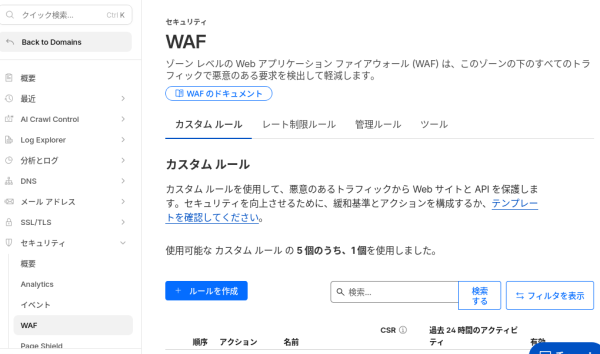
Click Create Rule → Set the rule name, fields, values, etc.
About fields
| URI | It is a combination of the “path” after the domain and the “character string after ?”. Example: For https://bokumin.org/archives/123?s=test, /archives/123?s=test will be the URI. |
| Complete URI | Any string starting with https://. Example: https://bokumin.org/archives/123 |
| URI path | The part after the domain and before the “?”. Example: https://bokumin.org/archives/123?s=test, then /archives/123 is the path. |
| URI query string | The part after the “?” at the end of the URL. Used for search keywords and parameters. Examples: s=test and id=50. Used to prevent attacks (SQL injection, etc.) here. |
| AS Num | This is the management number of an Internet provider (ISP) or company. Data centers such as “AWS” and “Google Cloud” have unique numbers. *This is an item that is blocked by taking advantage of the difference that “general people use their home provider, but bots use a data center.” |
| Cookie | This is “user identification information” stored in the browser. Includes login status, tracking ID, etc. Example: Can be used for advanced settings such as “Do not scan logged-in users (people with a specific cookie)”. |
| Country | The country you are accessing from. Example: If you specify Japan, you can target only accesses from Japan. |
| Continent | A division of a “region” that is wider than a country. Example: Asia, Europe, etc. Used for general specifications such as “I want to restrict access from North America all at once.” |
About actions
| Managed Challenge | This is a mode in which Cloudflare’s AI automatically selects the “optimal wall” depending on the situation. If it’s an obvious bot, we’ll block it, if it’s suspicious, we’ll puzzle it, and if it’s a human, we’ll let it pass. It has the least amount of false positives and has the best balance. |
| Block | Cut off access without any questions asked. The other party will see a “403 Forbidden” error screen. |
| JS Challenge | Displays a loading screen that says “Checking your browser…”. This will stop simple bots that cannot run JavaScript, but it will cause stress for humans due to the waiting time. |
| Interactive Challenge | Displays a checkbox (Turnstile) that says “Confirm that you are human.” Since the user cannot proceed without clicking, even advanced bots can be strongly blocked. |
| Skip | Exempt from WAF inspection (whitelist). Use this when you want to allow a specific IP address (yourself) or a specific bot unconditionally. |
About operators
| Operator (Japanese) | Explanation and usage | Input example |
| Equals Not equal to | Exact match? If even one character is different, it will not respond. Used when specifying a fixed value such as “country” or “method”. | Japan (exact match) |
| Contains Does not contain | [Basic]Is it included as part of the string? It is the most versatile because it will hit no matter what is attached before or after it. | /archives/(Anywhere in the URL is OK) |
| Starts with Does not start with | Does the beginning match? This is useful when you want to specify all pages under a specific directory. | /wp-admin(also applies to /wp-admin/xxxx) |
| Ends with Does not end with | Does the end match? Often used to specify the file extension (.php, .jpg, etc.). | .xml(targets sitemap.xml etc.) |
| Wildcard Strict wildcard | You can use the symbol to perform ambiguous searches. You can use * (any number of characters) or ? (any single character). *Even with the free plan, you can use URI pass etc. | /wp-content/uploads/*.php(Specify all php files under uploads) |
| Match regular expression Do not match regular expression | Advanced pattern matching. You can write complex conditions such as repeating numbers. | ^/archives/[0-9]{3}$(only when /archives/ is followed by 3 digits) |
Creation example
For example, if you want to check whether a specific URL is a bot when accessing it, do as follows.
(For /amedas-dashboard/ on this site)
Field: URI
Operator: Wildcard
Value: /amedas-dashboard/*
Action: Managed Challenge
Location: First
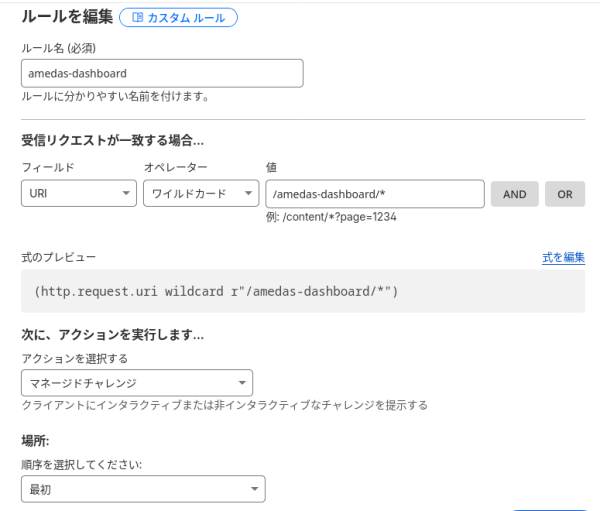
We will manually check whether the WAF is actually working.
Access the set URL in private mode etc. and check the behavior.
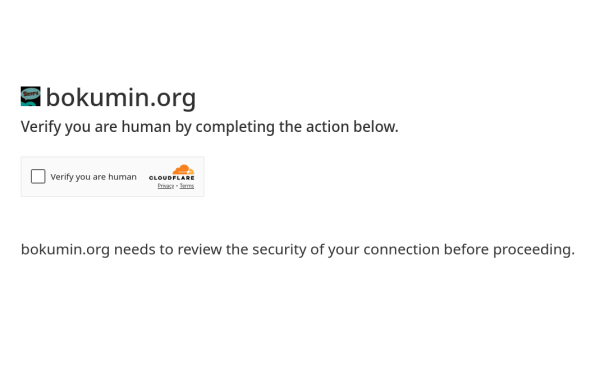
If it looks like the above, it is complete.
This time, we introduced a method to easily display the “I’m not a robot” authentication screen using just Cloudflare’s WAF.
Managed challenges are particularly good, as CloudFlare determines whether it is a human or a bot, increasing security without sacrificing convenience for general readers.
You might try installing it in a place where it is likely to be compromised, such as on the WP login screen or in a web application.
You can use such powerful functions even with the free plan, so if you want to take security measures, please try using Cloudflare’s WAF.
End